Everyday Printer Paper
Best for quick activities, coloring pages and everyday play.
Grown-up printing help
A quick guide to downloading, choosing the right file and getting a great print at home.
Jump to the 60-Second GuideNew to printable downloads?
A printable is a digital file, not a book that arrives in the mail. You download the file after purchase, open the PDF, and send the pages you choose to a printer.
You do not need a Pebble & Page account to purchase or download a printable adventure.
If your download includes different instructions, the product-specific printing guide takes priority over this general guide.
Five clear checks
Follow these steps in order before printing the full adventure.
Start with the files
After purchase, download your Pebble & Page files to your phone, tablet or computer.
If your download arrives as a ZIP file, open it first to see the PDFs inside. A ZIP is just a folder that keeps several files together.
Match the file to the paper
Pick the PDF that matches the paper you normally use. The words Letter or A4 are usually in the file name.
Load the same paper size into the printer before opening the print window.
Pause before printing
Before printing, check your paper size, page orientation and print scale.
Use Actual Size or 100% when the file is designed for your paper size. Turn off Two-Sided or Duplex when you want separate activity sheets.
Look before you print
Make sure the full page is visible before you print. The preview is the small picture of the paper inside the print window.
If artwork or text is cut off, check the paper size and scale settings again.
Make one small test
Start with one test page.
If everything looks right, print the rest of your adventure.
Check that the words and artwork are complete, the page is right-side up, and the color looks good enough for your printer.
Looks good? You’re ready to play. ✨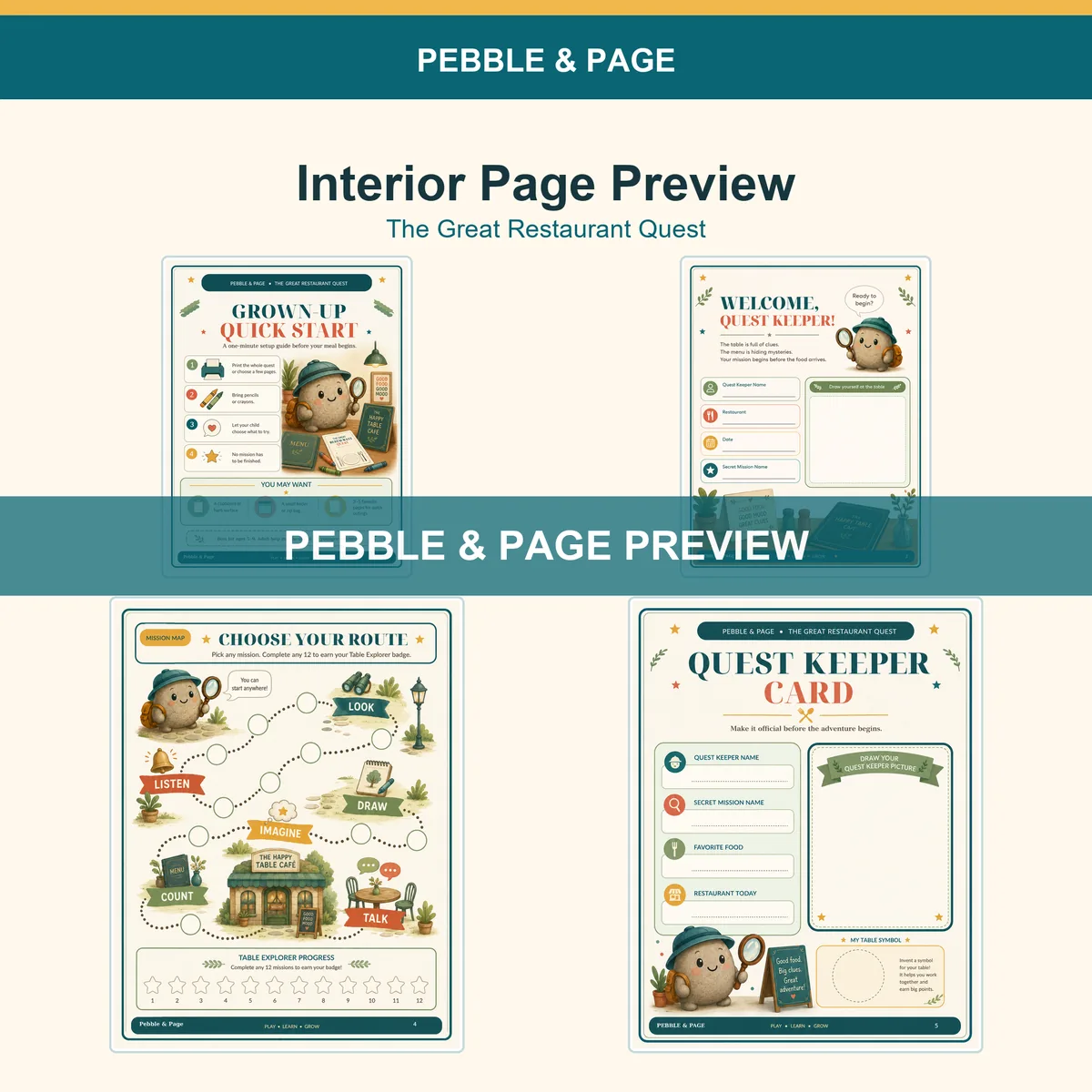
Simple choices
Special paper is optional. Start with what you already have.
Best for quick activities, coloring pages and everyday play.
A nice choice for pieces that will be handled often, cut out or reused. Check what paper weight your printer accepts.
If an activity works well with dry-erase markers, families can choose to laminate it or place it in a reusable sleeve. This is optional.
The settings, in plain language
Printer menus use different names, but these choices solve most first-print problems.
Load 8.5 × 11 inch paper and select Letter in the print window.
Load 210 × 297 millimeter paper and select A4 in the print window.
This keeps the printable at the intended size.
Use a printer-safe file when included. Otherwise use Fit only when the product guide recommends it or the preview still clips an unimportant edge.
The same setting may be called Duplex or Print on Both Sides.
Do not leave All Pages selected for the first test.
When both files are included
Many current Pebble & Page downloads include printer-safe editions. Always check the exact product listing and file names.
Use the matching full-page file when the preview shows the complete artwork and your printer handles the page edges well.
Use a printer-safe edition when it is included and your printer needs more room around the edges.
Choose your device
Use the short path below first. The detailed device cards underneath can help when your menu looks different.
Menus can look a little different depending on your phone, tablet and printer.
Print menus vary by computer and printer, so use the preview as your final check.
More detailed directions
These steps cover common Windows, Mac, Chromebook, iPhone, iPad, and Android print menus.
Save paper and ink
Confirm the settings before sending a full book to the printer.
Print one activity, a short range, or selected pages instead of All Pages.
Use the option that fits the page and your family. Check the preview before printing.
Draft can use less ink for practice pages. Use Standard or Best when you want richer color.
Your product license explains personal household reprints. Do not resell, redistribute, upload, or share the files.
Printer words translated
Common fixes
Open the question that matches what you see.
Check your print scale. If the correct paper-size PDF is selected, try Actual Size or 100%.
First confirm that the PDF and printer are using the same paper size. Then check the print preview. If your printer cannot print close to the edge, use a printer-safe version when one is included.
A ZIP file is simply a folder used to keep several download files together. Open or extract it to see the PDFs inside.
Check your Downloads folder or your browser’s recent downloads. On a phone or tablet, it may also appear in the Files app. Search for the product title if the folder is busy.
Usually, yes. If the preview looks incomplete or the print controls are limited, download the PDF first and open the saved copy in a current PDF reader.
In the print window, find Pages or Page Range and choose the single page number you want. Use that one-page setting for your test print.
Turn off Two-Sided, Double-Sided, or Duplex printing when you want separate activity sheets. Printer menus use different names for the same setting.
Change Orientation to Portrait or Landscape so it matches the page shown in the preview. Auto orientation also works well on many printers.
Screens and printers display color differently, so small color differences are normal. Printer settings, ink and paper can also affect the result.
That’s okay. Check whether your adventure includes a printer-safe version, or use the print preview to make sure important artwork and text stay inside your printer’s printable area.
Check that the printer is powered on, has paper, and is connected to the same network or cable as your device. Clear paused jobs in the print queue. For a hardware error, use the printer maker’s support guide.
Let the page dry before handling it. Check the paper setting and ink or toner level, then use your printer maker’s cleaning instructions if streaks continue.
Cancel the print job and follow the printer maker’s instructions for removing paper safely. Reload a small, straight stack and make sure the paper guides touch the edges without bending them.
Contact us and tell us which adventure you’re printing, which device and printer you’re using, and what the preview or printed page looks like. Please do not send passwords or payment-card details.
Tell us which adventure, device, and printer you’re using.